

Arol brings nearly a decade of writing experience, and the occasional hot take, to his writings. While he's a technology lover at heart, he holds computer hardware and smartphones particularly close to heart. You'll normally find him covering news, although he has also written the occasional deal, buyer's guide, how-to post, and round-up. He's also written for Android Police and MakeUseOf. He's also a Political Science student. When he's not writing, you'll probably find him hitting the gym, trying to ace a new hobby, reading his textbooks, or traveling. You can reach him at me@arolwright.com.
Those little Wi-Fi bars in your taskbar might make you think you have the strongest signal in town, but they measure something far narrower than speed or reliability. Here is what the meter actually reads, why full bars can still mean a sluggish connection, and how to check what your network is doing.
How the Wi-Fi meter actually works
The icon measures signal strength, not connection quality
The little icon in your taskbar looks simple, but it's really a compressed summary of a single measurement: how strongly your computer hears the router's radio signal. Your Wi-Fi adapter constantly reads the received signal strength, known as RSSI and expressed in negative decibel-milliwatts. A reading around -40 dBm is excellent, while -80 dBm is barely usable. Windows converts that number into a quality percentage, where roughly -50 dBm or better lands near 100 percent and -100 dBm sits near zero, then rounds the result into a handful of bars. You can see the underlying percentage by running "netsh wlan show interfaces" in Command Prompt, which reports a signal value alongside other details about your connection.
Because the meter is built on that one input, it answers a narrow question: how loud is the router from where you are sitting? That is useful, since a weak signal forces the adapter to fall back to slower, more forgiving modulation schemes, which drags speeds down. Distance, walls, floors, and even a fish tank between you and the access point all chip away at the signal, and the bars drop accordingly. In that sense, the icon is a decent proximity gauge.
So it is useful, and it can give you a rough idea of how close you are, or how far you are, from an access point. What it does not do is test the connection. The meter never sends data anywhere. It doesn't measure how fast information travels, how long it takes to get a reply, or whether packets get lost along the way. It also says nothing about the router's link to your internet provider, which is the part of the chain Wi-Fi never touches. The bars describe the first few meters of a journey that may span thousands of kilometers, and they capture only a single moment.
Why it's sometimes deceiving
Strong signal can still hide congestion, noise, and bottlenecks
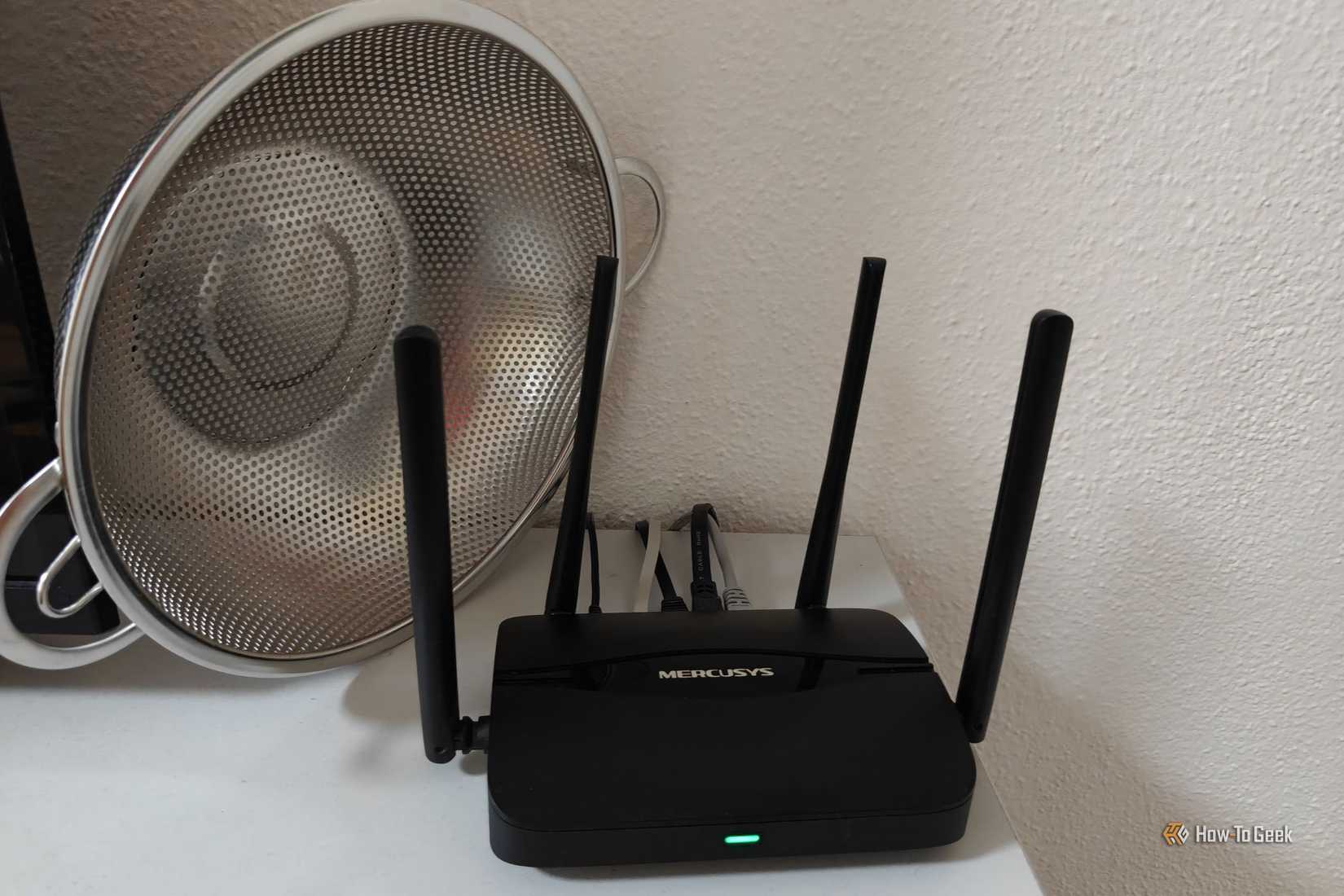
Even though it's a rough indicator of wireless strength, it fails to account for a ton of stuff. First of all, full bars tell you the router is easy to hear, but they say nothing about everything else competing for the airwaves. Wi-Fi is a shared medium, so every nearby network and device on the same channel takes turns transmitting. In an apartment building, dozens of routers can crowd the 2.4GHz band, which offers only three non-overlapping channels in the United States. Your signal may look superb while your adapter spends much of its time waiting for a gap in the chatter. Household gadgets like microwave ovens, Bluetooth accessories, and baby monitors can add more noise on the same frequencies, and the bars ignore all of i
Acronis Advanced Backup - Workstation
Acronis Advanced Backup - Workstation - Enterprise-grade backup & recovery solution
Band choice adds another twist. The 2.4GHz band travels farther and passes through walls more easily, so it often shows more bars than 5GHz or 6GHz from the same spot. Yet it is also slower and more crowded, which means a laptop on 5GHz with two bars can easily outperform one on 2.4GHz with four. The meter has no idea which one is the better deal — and it's normally the tiebreaker your PC uses to check which network to connect to.
There is also an asymmetry problem. Your router can transmit at higher power than your laptop or phone, so you may hear it clearly even though it struggles to hear you. Uploads suffer, video calls stutter, and the icon still looks perfect.
Finally, the bottleneck may not be wireless at all. A slow internet plan, an overloaded provider, a failing modem, or a DNS hiccup can leave you with full bars and no working internet. Windows sometimes flags this with a small globe or warning symbol, but not always, and not quickly.
How to know your Wi-Fi's true conditions
Test speed, latency, and link rate instead of trusting bars
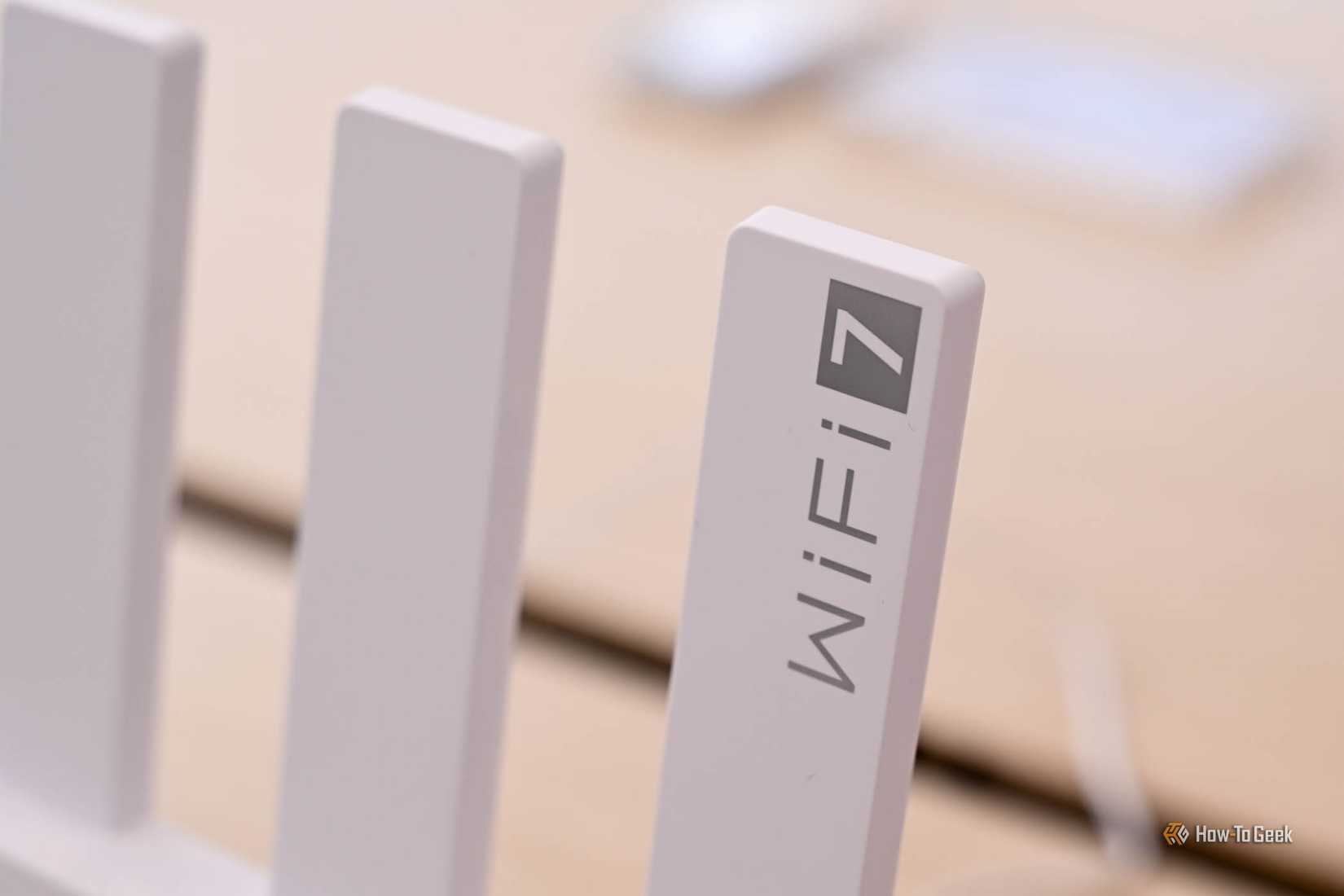
Start with the measurements that reflect real experience. Run a speed test and compare the result to what your provider promises, paying attention to upload as well as download. Then check latency and stability. Open Command Prompt and ping your router, then ping a public address such as 1.1.1.1 for a minute or so. Consistently low response times with no lost packets point to a healthy connection, while spikes or dropped replies explain why calls and games feel choppy even when downloads look fine. Some speed testing sites also report jitter and latency under load, which reveals problems that a basic test hides.
Next, look at what your adapter has negotiated. The "netsh wlan show interfaces" command lists the radio type, the band and channel, and the receive and transmit rates. A low link rate despite a strong signal suggests interference, an older Wi-Fi standard, or a poor channel. The Performance tab in Task Manager shows a similar link speed for your Wi-Fi adapter.
To separate wireless trouble from internet trouble, plug a laptop into the router with an Ethernet cable and test again. If the wired result is fast and the wireless one is not, the problem lives in the air. If both are slow, look at the router, modem, or your provider. Testing a second device on the same network helps rule out a faulty adapter or driver.
If the air is the problem, a Wi-Fi analyzer app can show which channels nearby networks occupy, so you can move your router to a quieter one. Switching to 5GHz or 6GHz, repositioning the router, or adding a mesh node usually delivers more than chasing extra bars.
Bars show signal, not real performance
The Wi-Fi icon only tells you how clearly your PC hears the router. Speed, latency, link rate, and stability decide whether your connection actually works well. Test those directly, isolate the problem with a wired connection, and you will know what's happening instead of guessing from a few bars.
Originally published on October 5, 2026 by How To Geek.


